


Showing posts with label Uncategorized. Show all posts
Showing posts with label Uncategorized. Show all posts
Monday, 13 October 2014

Wednesday, 20 August 2014
How To Save Flash File From A Website ?

In this tutorial i am going to show you a very simple approach to save a flash file, however if you don't like this approach then you can read my other tutorial "How to save flash files from a website ?" where i have described a totally different approach which is also a easy approach. Now its up to you to choose the method in which feel more comfortable.
Like in previous approach, here again we first search the URL of the flash files and then we use that URL to save the flash file to our PC.
How to search a Flash file/ .swf file URL ?
In this approach i am using Mozilla Firefox Browser to save the URL of Flash Files. If you don't have a Firefox browser and you do not want to download it then don't worry you can read my other tutorial where you can use any browser to search the URL of flash files. So now lets start the tutorial:- Open the website(which contains the flash file) in your browser.
- Then right click your mouse and select View Page Info from the list.
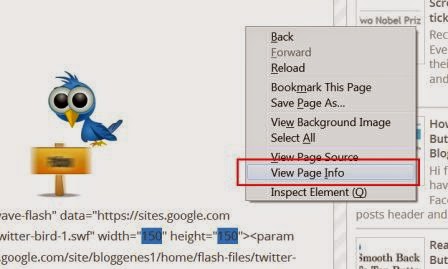
- Then Click on Media as shown in screenshots.

- Now in Address list, simply scroll down and search the URL's which have type Embed or Object.
- These are the URL's of flash files with .swf extensions at the end.
- Now copy the URL of the Flash file that you want to save onto your computer.
How to save a Flash File/ .swf file to computer ?
- Now you have the URL of Flash file, so open a new tab of your web browser.
- Then in address bar enter the URL of flash file and press Enter.

- Now you can see your flash file.
- Now click on the Menu tab of your browser and select Save Page As from the list.
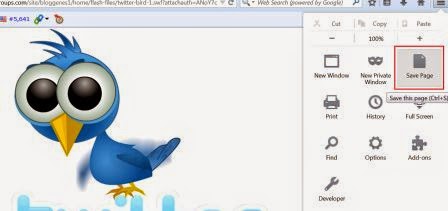
- Or you can directly save the file by pressing CTRL + S.
- Now Save the file with .swf extension and you are done.

How to open a flash file ?
- Open the folder that contains the flash file/ .swf file.
- Then select the file that you want to open.
- Then right click your mouse over the selected file.
- Select Open With and the select any of the web browser to open it.
- How to generate URL for a .swf file ? (Recommended)
Monday, 18 August 2014
How To Generate URL For A Swf File ?

To use a swf file over internet our first requirement is to upload it on a server or on a website so that we can get the url for our swf file that we can use for various purposes.
Where to upload a SWF file ?
We can upload a swf file on Google Sites which is a free service provided by Google.- First log in to your Google Account or directly sign up for Google Sites if you don't have a Google Account.
- Then in your browser enter https://sites.google.com/ and press enter.
- Now it will again ask you to enter your password, again enter your password.
- Now you can see the Google Sites Homepage.

- Then click on Create tab to create a new site.
- Enter the required fields like name your site, site location etc. and then click on Create tab.

- Now you are redirected to your newly created site's homepage.
- Now click on New page as shown in screenshots.

- Enter the name of your page and in "select a location" field select "put page under home" from the list.

- Now click on Create tab.
- Now again you will be redirected to your newly created page.
How to upload a swf file ?
- In your newly created page, scroll down and you can see an option named ADD FILES.

- Click on Add Files and then select the swf file from your computer and click on Open tab.

- Now you can see your file has uploaded on the Google sites.
How to generate the URL of SWF file ?
- Now your file has uploaded on Google sites and you can see it on your Google sites page.
- Now press the right click of your mouse over the file name and select "Copy link location" (if you are using Firefox) otherwise select "Copy link address" (if you are using Google Chrome) from the list as shown in screenshots.

- Now you have copied the address but you have to clear it up.
- Open Notepad and paste the copied address.
- Now clear everything that comes after .swf as shown in screenshots.

- Then copy the address of your swf file and use it wherever you want.

- To check that whether your swf file URL is working properly or not, open new tab in your browser and in address bar enter your swf file address and press enter.
Sunday, 17 August 2014
How To Save Flash File From A Website ?

If you have a tech blog or you love to make new widgets but don't know how to save a flash file from website then you are at right place. Saving a flash file is different than saving an ordinary file but it is not difficult. You can save a flash file to your computer if you have little knowledge about the flash files. Since i have already discussed above that flash flies are saved in swf format and they have .swf extension. So first thing we require is to search the site for .swf file.
How to search a flash file/ .swf file ?
- Open the website in your browser which has the flash file that you want to save to your computer.
- Then press the right click of the mouse and then click on "View Page Source" from the list.

- Then a new window will pop up that has some written code in it.
- Now on that window press CTRL + F and search .swf as shown in screenshots.

- Now you will see all that files that have .swf extension, generally they are in the form of URL which look like http://www.abc.com/xyz.swf.
- Copy such URL and open a new tab in your browser.
- Now paste the URL in the address bar of your browser and press enter.

- Now you can see the flash file in a separate tab.
How to Save Flash file ?
- Now press the menu tab of your browser, you can find this tab on the top right side in your web browser.

- Then select the Save Page As from the list and save the file to your computer.
- You can directly save the file using CTRL +S tab also.
- Save the file in your PC with .swf extension.

- After downloading the file open it with any of the browser.
- How to save flash file from a website ? (Different Approach)
- How to generate URL for a flash file/.swf file ? (Recommended)
Friday, 18 October 2013
Does Paypal Offer An Affiliate Or Referral Program ?

“We’ve more than fulfilled our mission with this program and PayPal is now proud to offer a robust and dedicated line of services for both partners and merchants.”
Paypal's updated user agreement after closing of referral program:
The Merchant Referral Bonus Program (“the Bonus”) will be discontinued for all account holders and the PayPal Bonuses Policy will no longer be in effect. Active account holders will receive an email from PayPal indicating an end date specific to their current participation in the Bonus program.This is a disappointing news for the merchants who were using PayPal for earning some extra income, well don't be disappointed there are many other payment processors which are offering good referral program to their users.
You will receive this email at least 60 days in advance of the end date. Once your end date is in effect, new referrals will no longer be tracked or accumulate toward this bonus program. In addition, bonus accrual payments will be stopped.
Any final accrued bonus balances from your referrals will be paid to your PayPal account in accordance with the standard 30 day payout cycle. Your PayPal account is not impacted in any way with the discontinuation of this program.
Also read: Infolinks Affiliate or Referral program details (Recommended)
Thursday, 17 October 2013
Infolinks Affiliate Or Referral Program Details
 As i already discussed about Infolinks advertising network in my previous post about Infolinks, its a great network and one of my favorite one. Like other networks Infolinks also offers an affiliate program to its publishers, so they can increase their earnings by referring Infolinks to others. Infolinks offers affiliate program but they do not provide referral link directly in your Infolinks dashboard like other networks and therefore you need to ask them for your referral link by contacting them. Their affiliate program is quite interesting and offers different commission for different type of publishers. So if you refer a large publisher then it will be a lottery for you.
Before getting deep into the program details, i would like to describe some terms in respect to Infolinks:
Small Publisher: A publisher is considered as a Small publisher if it has daily average net infolinks page impressions up to 10,000.
Medium Publisher: A publisher is considered as a Medium publisher if it has daily average net Infolinks page impressions up to 100,000.
Large Publisher: A publisher is considered as a large publisher if it has daily average net Infolinks page impressions over 100,000.
Infolinks referral program details:
For each publisher who joins the Infolinks network through your referral link, you will be entitled to a one-time referral fee of up to $1,000 per new publisher, as follows :- For a Small publisher you refer to Infolinks, you will get 25$.
- For a Medium publisher you refer to Infolinks, you will get 100$.
- For a Large publisher you refer to Infolinks, you will get 1000$.
- Publisher’s traffic must have at least 30% of traffic from the US. If less than 30% of the publisher’s traffic comes from the US then the referral fee will be 30% of the fees listed above that is if you refer a small publisher and your publisher's traffic from US is less than 30% then you will get 7.5$ instead of 25$.
- The new publisher must be actually new (and not in previous contact with Infolinks or related to any of the Infolinks publishers).
- Publisher must enter the Infolinks website through your referral link, be accepted to become a qualified Infolinks publisher, and remain a fully active Infolinks publisher with an average of at least 300 daily net impressions for a minimal consecutive period of three months.
- And during this three months period, you are also needed to be an active Infolinks publisher to get your earnings.
This program looks great and with this you can earn some more money from Infolinks. So start referring people to join Infolinks.
Happy earnings !
Also read:
Happy earnings !
Also read:
Friday, 19 July 2013
PPV - Pay Per View

In this advertising model if the advertisements are loaded on the page but are not viewed by the visitors then they are not considered as the part of Pay Per View metric.
For Example:
Consider a website has two advertisements one at the top of the page i.e. in header section of website and other at the bottom of the page i.e. in the footer section then if a visitor visits the website and sees its top portion only but not the footer section in this case both the advertisement are loaded but the advertisement on the top of the page is considered to be as a valid view.
Some PPV advertising networks are:
PPC - Pay Per Click

Cost Per Click/Pay Per Click is generally an web advertising model which is used to direct traffic to the advertisers website/product from publishers website.
It can also be defined as " the amount spent to get an advertisement clicked by the visitors of a particular website".
Some top paying PPC Ad networks are:
CPT - Cost Per Thousand Impressions

For Example:
A $5 CPM means the advertiser will pay you $5 for every 1000 ad views i.e. for every 1000 times the ad appears on your website.
However some impressions are not counted such as the reload operations or the internal user activity.
Most of the publishers like this web advertising model because they get paid for displaying ads only.
Some of the best CPT ad networks are:
CTR - Click Through Rate

Click Through rate percentage can be calculated as :

If an advertiser is serving his/her advertisement(such as banner ad) for 100 times on a publisher's website and the advertisement receives only 5 clicks then the click through rate for the advertisement is 5%.
However in most cases, a 2% click-through rate would be considered very successful campaign.
In general Click Through Rate is a way of measuring the success of an online campaign by calculating the ratio of number of clicks on a particular advertisement to the total number of impression (the number of times the advertisement is shown).
CPM - Cost Per Mille

Mille is a latin word which means "Thousand".
So now i can define it,
Cost Per Mille (CPT) sometimes also known as Cost Per Thousand Impressions (CPT) is also an web advertising model in which advertisers pay their publishers (who is typically a website owner) for every thousand advertisement views by the visitors of publisher's website.
For Example:
A $5 CPM means the advertiser will pay you $5 for every 1000 ad views i.e. for every 1000 times the ad appears on your website.
However some impressions are not counted such as the reload operations or the internal user activity.
Most of the publishers like this web advertising model because they get paid for displaying ads only.
Some of the best CPM ad networks are:
CPV - Cost Per View

In this advertising model if the advertisements are loaded on the page but are not viewed by the visitors then they are not considered as the part of Cost Per View metric.
For Example:
Consider a website has two advertisements one at the top of the page i.e. in header section of website and other at the bottom of the page i.e. in the footer section then if a visitor visits the website and sees its top portion only but not the footer section in this case both the advertisement are loaded but the advertisement on the top of the page is considered to be as a valid view.
Some CPV advertising networks are:
CPV - Cost Per Visitor

In other words you can say that the publisher is paid only when a visitor from the publisher's website reaches the advertisers website or any other resources.
Some top paying CPV advertising networks are:
- Media Traffic
- LeadImpact
- AdOn network
CPS- Cost Per Sale

For example :
If any visitor from the publishers website reaches on the advertisers website by clicking an advertisement that is present on the publisher's website and then purchases some product from the advertisers website then advertiser pays to its publisher.
Cost Per Sale (CPS) is a Variant of Cost Per Action (CPA) where the advertiser pays the publisher (typically a website owner) in proportion to the number of actions performed by the readers or visitors of the website.
Some CPS advertisement networks are:
- Commission Junction
- ShareASale
CPA- Cost Per Action

CPA is sometimes also referred to as "Cost Per Acquisition", which has to do with the fact that most CPA offers by advertisers are about acquiring something (typically new customers by making sales).
Some CPA advertising networks are:
CPC - Cost Per Click

Cost Per Click/Pay Per Click is generally an web advertising model which is used to direct traffic to the advertisers website/product from publishers website.
It can also be defined as " the amount spent to get an advertisement clicked by the visitors of a particular website".
Some top paying CPC Ad networks are:
Subscribe to:
Posts (Atom)